Looking for a free expense tracker app you can open without creating an online account? FlowTrack is designed for recording income and expenses in your browser. It offers offline use after an initial online visit and supports African and global currency labels, with records kept in the browser you use.
Explore FlowTrack’s current features, then launch FlowTrack when you are ready to set up your own ledger. The preview uses sample data; your records begin empty.
On this page
Table of Contents
Choose a free expense tracker app around your needs
The useful starting point is a routine you can keep. You may want to record money received, note day-to-day spending and review the month in one place. A simple browser-based workflow can suit that goal when you understand where records are stored and how you will keep backups.
FlowTrack’s published offer is clear: free to use, no signup and offline availability after setup. The following seven checks explain what those features mean when you are deciding whether to start using it.
Seven reasons to explore FlowTrack
1. Start with the free offer
FlowTrack is presented as free to use. That makes it an option to explore when you want a free expense tracker app before committing to a more involved system. Open the public overview, inspect the sample interface and decide whether the tracking approach matches your needs.
Begin with the tasks you actually expect to repeat. If you need a place to maintain a personal income and spending record, a focused workflow is easier to evaluate than a feature list disconnected from your daily routine.
2. Open the app without an online signup
The product page states that no signup is required. You still create a PIN as part of using the application, and you should retain the recovery key provided by the setup process. The PIN and recovery arrangements protect access to the records on the browser you use.
Set aside time for those first-use instructions. Saving the recovery information before recording important transactions is more manageable than trying to reconstruct it after a device problem.
3. Keep income and expenses in the same review
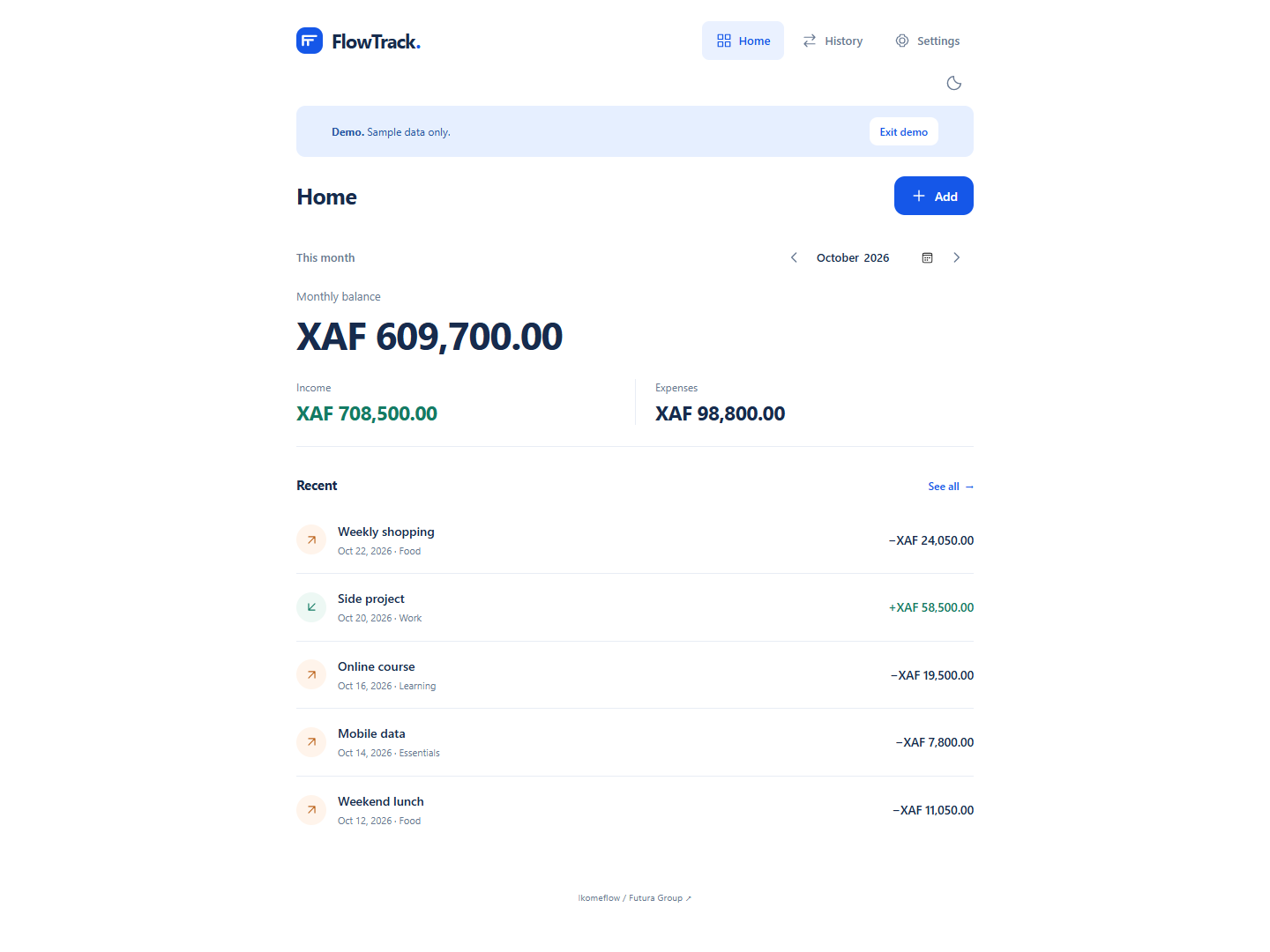
An expense list is more informative when you can also see the income recorded for the period. FlowTrack brings income and expenses into the same tracking workflow. Its published preview shows a monthly overview and recent transactions, helping you understand how the interface presents activity.
For example, you might enter income as it arrives, record spending consistently and review the month at a regular time. This is a suggested routine, not a forecast of savings. The value of a free expense tracker app depends on the accuracy and consistency of the records you maintain.
4. Continue offline after the initial online visit
Offline use requires an initial online visit. Open the application while connected and complete its setup before relying on it away from a connection. Test that experience on the browser and device you plan to use.
This can suit a routine where connectivity varies. Keep track of which browser contains your ledger, and follow the backup instructions so that your records remain part of a deliberate process.
5. Choose a currency label that matches your records
FlowTrack advertises African and global currencies. Choose the appropriate label for the information you are recording and stay consistent when reviewing amounts. This is particularly relevant when you are comparing tools for use outside a single market.
Currency labels do not convert amounts. Changing a label does not perform an exchange-rate calculation. If currency handling is central to your decision, review the current choices in the application before starting a real ledger.
6. Understand where your records live
FlowTrack’s public privacy guidance says records stay in the browser and that there is no cloud sync. Choose a browser and device you control, and consider how that local-storage approach fits the way you expect to use a free expense tracker app.
Clearing browser data or losing the device can erase records. That makes backups an important part of the product’s workflow. If your requirement includes shared access across devices, review that requirement carefully against the current storage model before committing your main record to the app.
7. Build the backup habit from the beginning
Create your PIN, retain your recovery key and download backups regularly. The published guidance explains that access cannot be restored without the necessary PIN, saved recovery information or backup. Keep those items somewhere you can find and protect.
JSON and CSV exports are unencrypted, so keep exported files private. Decide where you will store them and how often you will update them. Follow the current instructions when changing devices or browsers, and check your copies before you remove an existing ledger.
A simple first-use checklist
- Read the FlowTrack overview and storage guidance.
- Make the first online visit on your chosen browser.
- Create the PIN and save the recovery key.
- Check the currency label and enter your own information.
- Download a backup and choose a regular review schedule.
For business sales, expenses, profit and downloadable reports, compare BizTrack. For planning an offer and finding customers, explore Start Local. Sell Global. You can also view Futura Group’s wider software work.
Plan your first month with a free expense tracker app
A free expense tracker app is easier to evaluate when you choose a clear starting period and a manageable routine. Use records you can check, decide which browser will hold the ledger and choose a regular time to review what you have entered. This helps you assess the workflow on practical evidence.
Start with the current setup guidance. Create the PIN, retain the recovery key and understand how backups fit the browser-based storage model. Then choose the period you want to maintain. You can begin with a short, complete set of records rather than trying to reconstruct every past transaction at once.
- Set up once, carefully. Make the initial online visit on your intended browser, follow the instructions and keep the recovery information where you can retrieve and protect it.
- Record activity consistently. Enter income and expenses with descriptions you will recognise later. Compare amounts with the supporting records available to you, and review an entry if something looks wrong.
- Check a small period first. Look at the activity you entered and confirm that you understand what the overview is showing. Resolve missing or duplicated records before extending the review.
- Create a backup. Download a current copy according to the application’s instructions. Check where the file was saved and make it part of a deliberate storage routine.
- Review at the end of the month. Decide whether the process was manageable, whether the record is complete enough for your purpose and which habit would improve the next period.
Use the first month to evaluate the routine, not to chase a particular financial result. A free expense tracker app can help you maintain a record, but it still needs entries you can understand and a process you will repeat. Choose a review schedule that fits the way you receive income and make purchases.
A simple monthly review with illustrative figures
Consider an illustrative month with recorded income of 1,200 units and recorded expenses of 750 units. The difference between those recorded amounts is 450 units. This example explains a review process; the figures are not taken from a real FlowTrack account and do not represent a promised saving.
| Illustrative monthly record | Amount |
|---|---|
| Income entered for the period | 1,200 units |
| Expenses entered for the same period | 750 units |
| Difference between the recorded amounts | 450 units |
A free expense tracker app helps you return to the entries behind a total. If a record is missing or repeated, investigate it against the information you kept. Review the period being considered as well as the amount, especially when entries were added later.
Keep the currency label consistent with the amounts you record. FlowTrack’s currency labels do not perform conversions, so a different label will not turn the illustrative figures into a value in another currency. Check the current choices in the app before you start a ledger that depends on a particular label.
When to compare FlowTrack with business tracking
A free expense tracker app may suit a personal income and spending routine. Business recordkeeping can involve a different priority: reviewing sales, business expenses, profit and downloadable reports. Compare the published product descriptions so that you choose the workflow that matches the activity you want to maintain.
| The task you want to handle | Useful starting point |
|---|---|
| Maintain a personal income and spending record | FlowTrack overview |
| Review business sales, expenses, profit and reports | BizTrack overview |
| Plan an offer, customers and the next 90 days | Ebook overview |
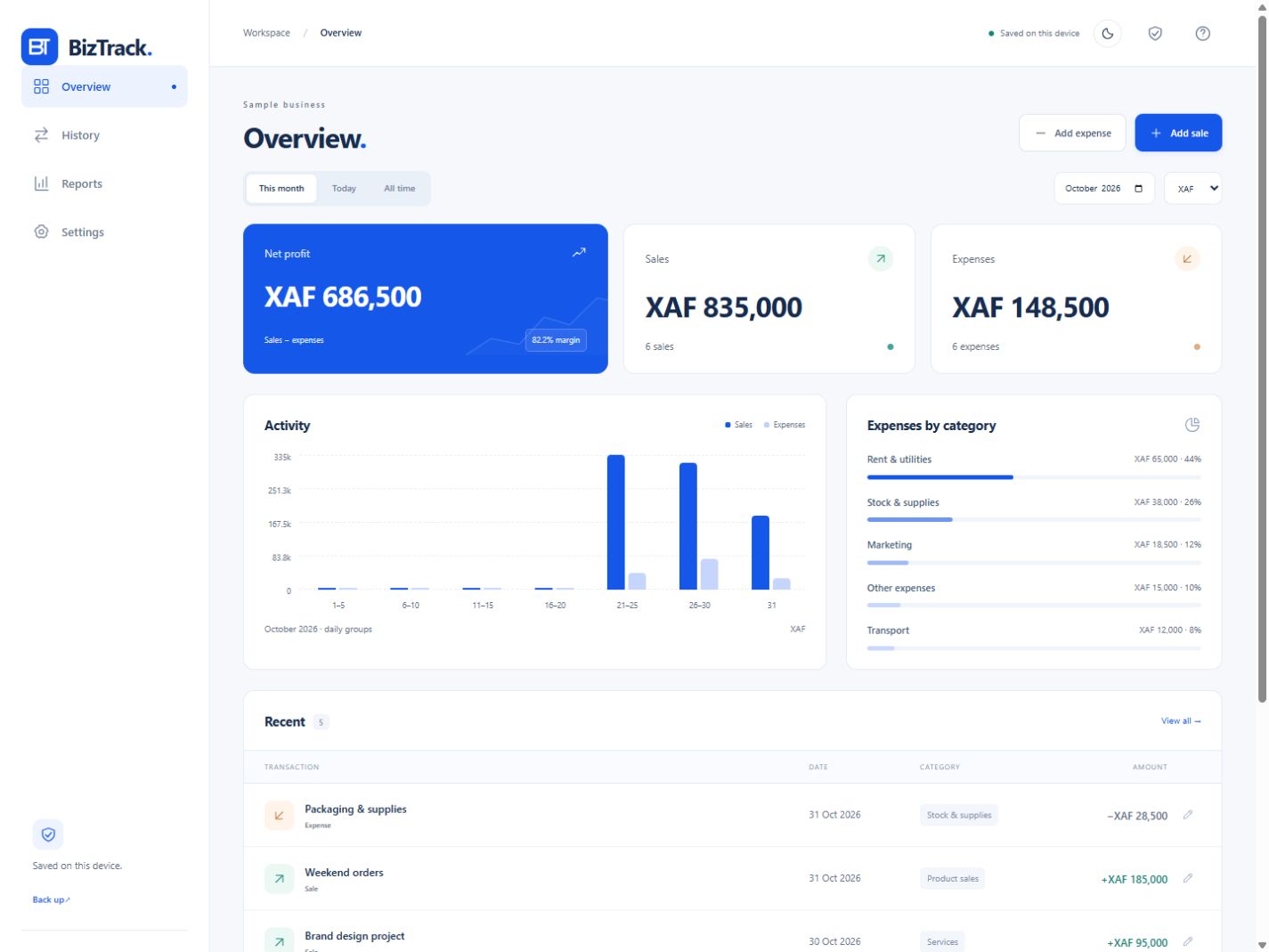
If a free expense tracker app meets your immediate needs, start with a routine you can keep. If business reporting is the main requirement, read the BizTrack buying guide and inspect its current features before making that choice.
The Start Local. Sell Global. buying guide serves a different purpose: evaluating an English-language business ebook and its planning resources. These product pages help you make a specific next-step decision without treating every offer as the same kind of tool.
Free expense tracker app checklist for storage and recovery
A free expense tracker app with browser-based storage needs a clear routine for access and copies. FlowTrack publishes the main storage facts on its overview page. Use this checklist to connect those facts with the way you intend to work.
- Know the browser: make a note of which browser and device contain the ledger you are maintaining.
- Retain recovery information: keep the PIN and saved recovery key in locations you can retrieve and protect.
- Check the backup location: confirm that the latest copy was actually saved where you intended.
- Update your copies: choose a regular backup point after adding or reviewing activity.
- Plan browser changes: read the current guidance before clearing browser data or moving your routine to another device.
- Keep exported files private: the published guidance states that JSON and CSV exports are unencrypted.
The app’s public guidance says records stay in the browser and that there is no cloud sync. Review that model against your own needs for access and continuity. A small amount of preparation makes the storage and recovery arrangements easier to understand before the ledger grows.
Is a free expense tracker app enough for my routine?
Choose a free expense tracker app when its current features match the record you intend to maintain. For FlowTrack, that means evaluating the income and expense workflow alongside browser storage, initial online setup and backups. Open the product overview, inspect the app and choose it because the process suits your routine.
Free expense tracker app questions
Is FlowTrack free to use?
Yes. The public product page presents FlowTrack as free to use, with no signup. Review the current overview and setup guidance before you start.
Does it sync my ledger to the cloud?
The published guidance says there is no cloud sync. Records remain in the browser, and you need a reliable backup routine.
Can I begin without an internet connection?
Make an initial online visit first. Offline use is available after setup, so test it on your intended device before relying on it away from a connection.
Try FlowTrack with a clear plan
If you want a free expense tracker app for maintaining an income and spending record, review FlowTrack and launch the app. Start with the setup instructions, keep your recovery details and make backups part of the routine.
Leave a Reply